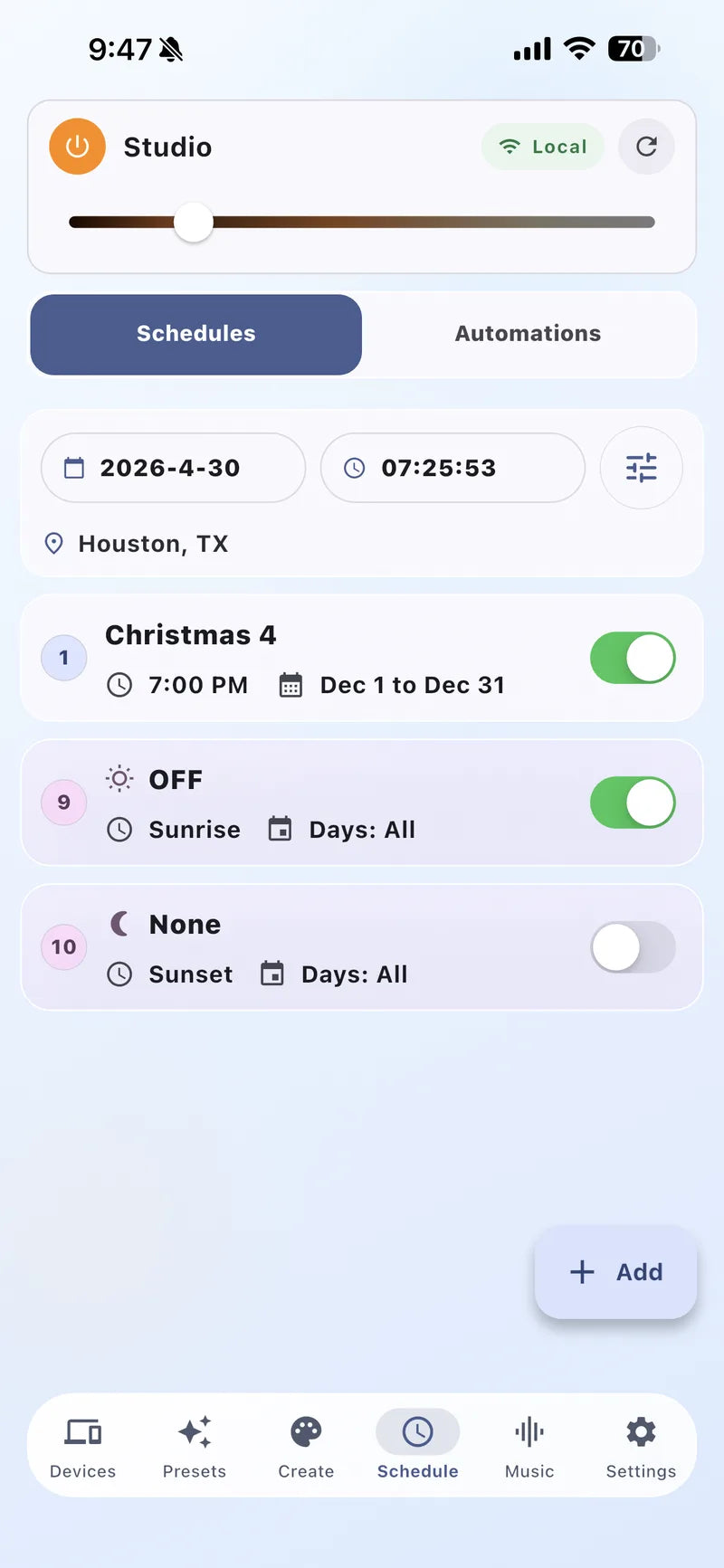
Review
See every active schedule
Use clear names so seasonal, everyday, and OFF routines are easy to distinguish.

App Setup Guide
Schedule presets automate Bright Home Lights controllers for holidays, everyday accent lighting, sunrise/sunset routines, and automatic off times -- so your roofline turns on and off without daily manual changes.
Quick answer: Before creating a schedule, confirm the controller's time zone and location are correct -- sunrise/sunset and calendar-based schedules depend on it. This is the most common reason scheduled lighting doesn't behave as expected.
App screens
Create and test the lighting preset first. Then attach that saved preset to a schedule or automation and confirm the controller's location and time settings.
Review
Use clear names so seasonal, everyday, and OFF routines are easy to distinguish.
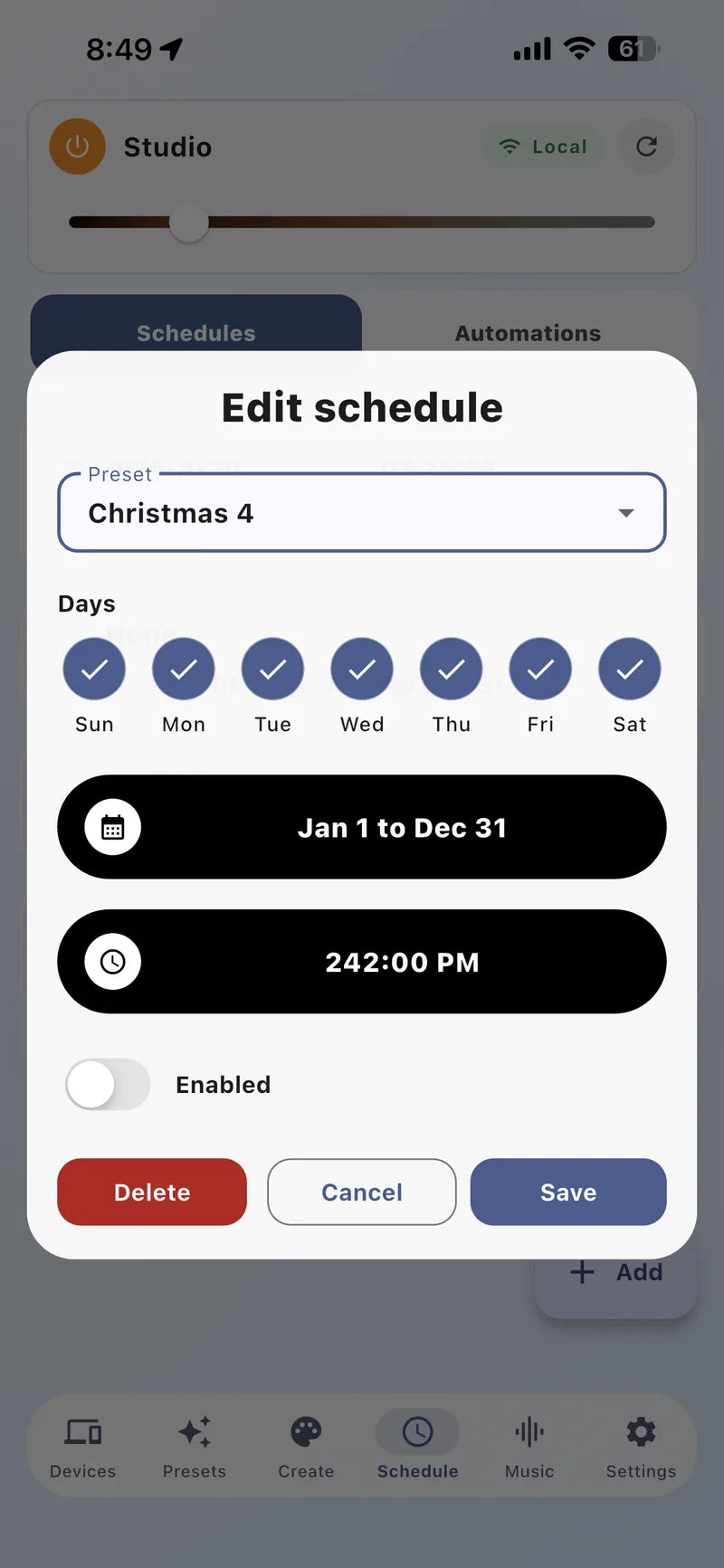
Configure
Attach a tested preset and confirm the repeat pattern before saving.
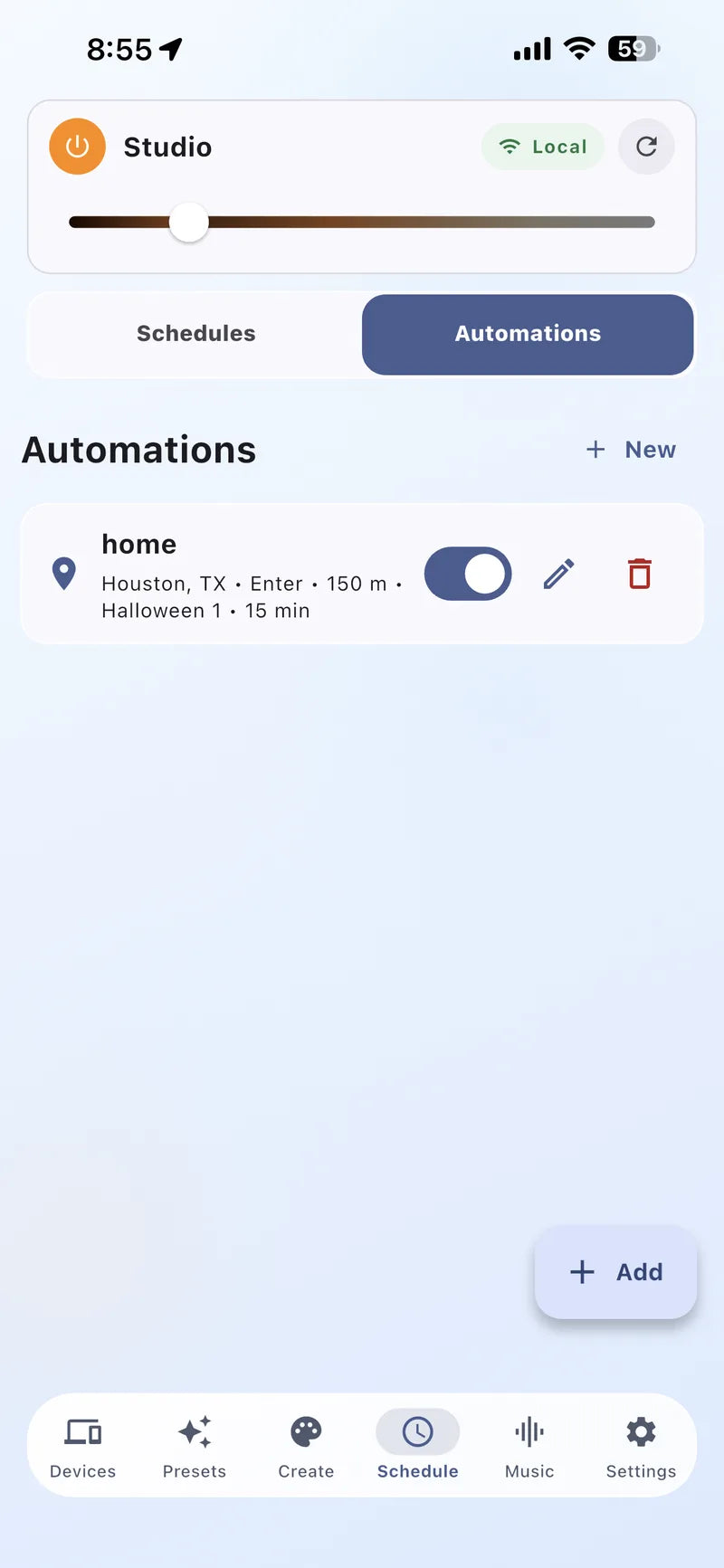
Verify
Sunrise and sunset routines depend on the correct controller location and time zone.
Set schedules to automatically trigger presets for sunrise, sunset, or any calendar day.
Location must be set to use sunrise and sunset features -- available from either the Bright Home app or the WLED backend directly. Once set correctly, calculated sunrise/sunset times will display.
Create and test the preset first, then attach it to the schedule.
Schedule an "OFF" preset to turn off the device
To turn the device off on a schedule, you must schedule an "OFF" preset -- don't rely on a color preset alone to shut the lights down. If you don't have one, turn off the device and save that state as a preset named "OFF" (or use the API command T=0). After saving, wait for the next scheduled run, or temporarily set a test time a few minutes ahead to confirm the controller responds correctly.
The most common issue is the controller's time not being set correctly.
Follow the prompts to the time settings menu and confirm the correct date and time are displayed. If not, reset the location and reboot the device.
Setting the time sometimes requires a device reboot before it takes effect.
If only part of the roofline runs the effect, review the LED count and segments guide -- correct counts and segments help schedules run the right effect on the right part of the roofline.
Review schedule presets after changing WiFi networks, adding a new controller, changing LED count, editing segments, or creating a new holiday routine -- a small change to any of these can affect the automation.