1 · Count
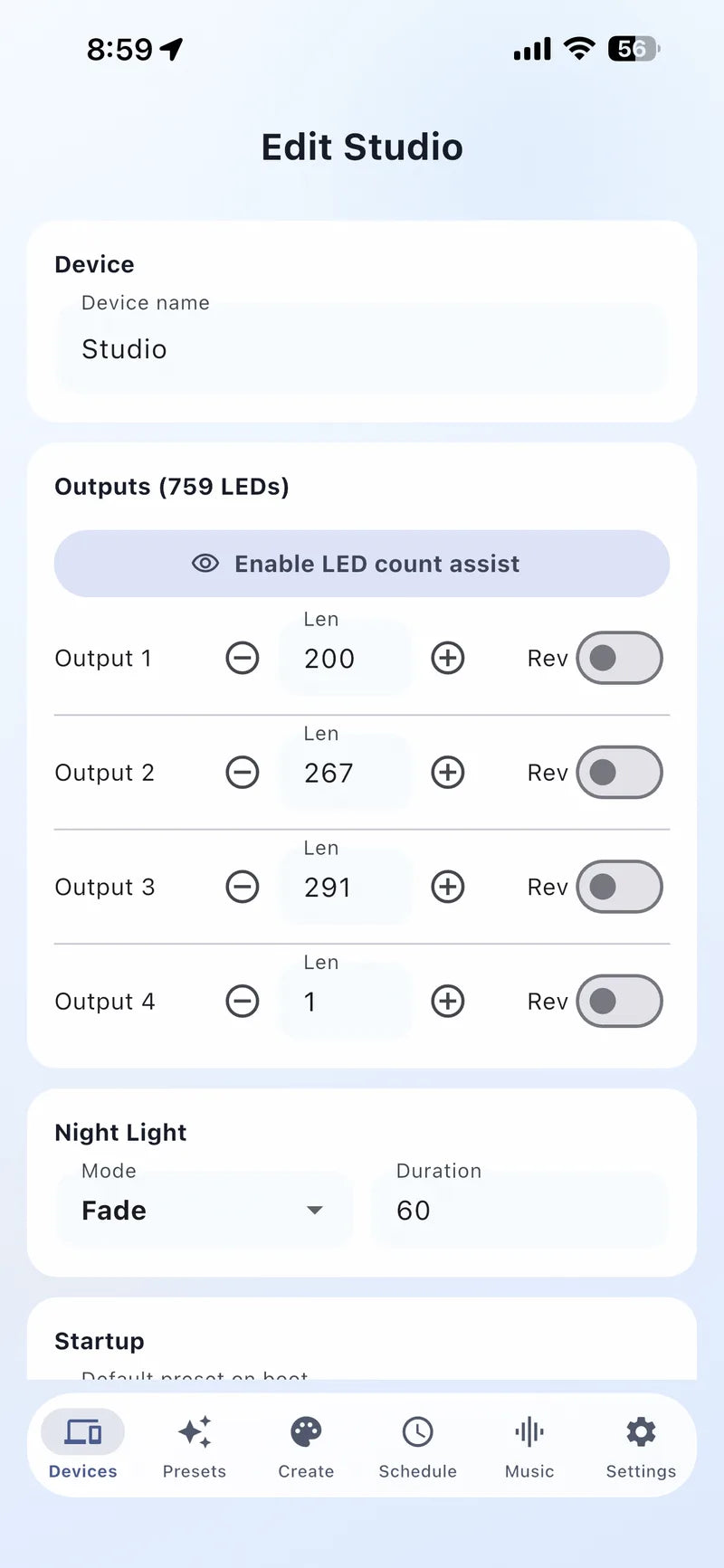
Enter each output's light count
Use the physical number of connected puck lights, not estimated footage.

App Setup Guide
LED count and segments tell the WLED controller how many lights are connected and how to divide a roofline into controllable sections. Getting this right keeps presets, effects, and schedules accurate.
Quick answer: Set the LED count for each controller output first, using the actual number of connected lights. Segments are optional and let you control sections of a run -- like garage, peak, or porch -- independently once the count is correct.
Before creating effects
The controller needs an accurate map of the physical lights. Set the actual count on each output before creating segments; otherwise colors can stop early or effects can be compressed.
1 · Count
Use the physical number of connected puck lights, not estimated footage.
2 · Segment
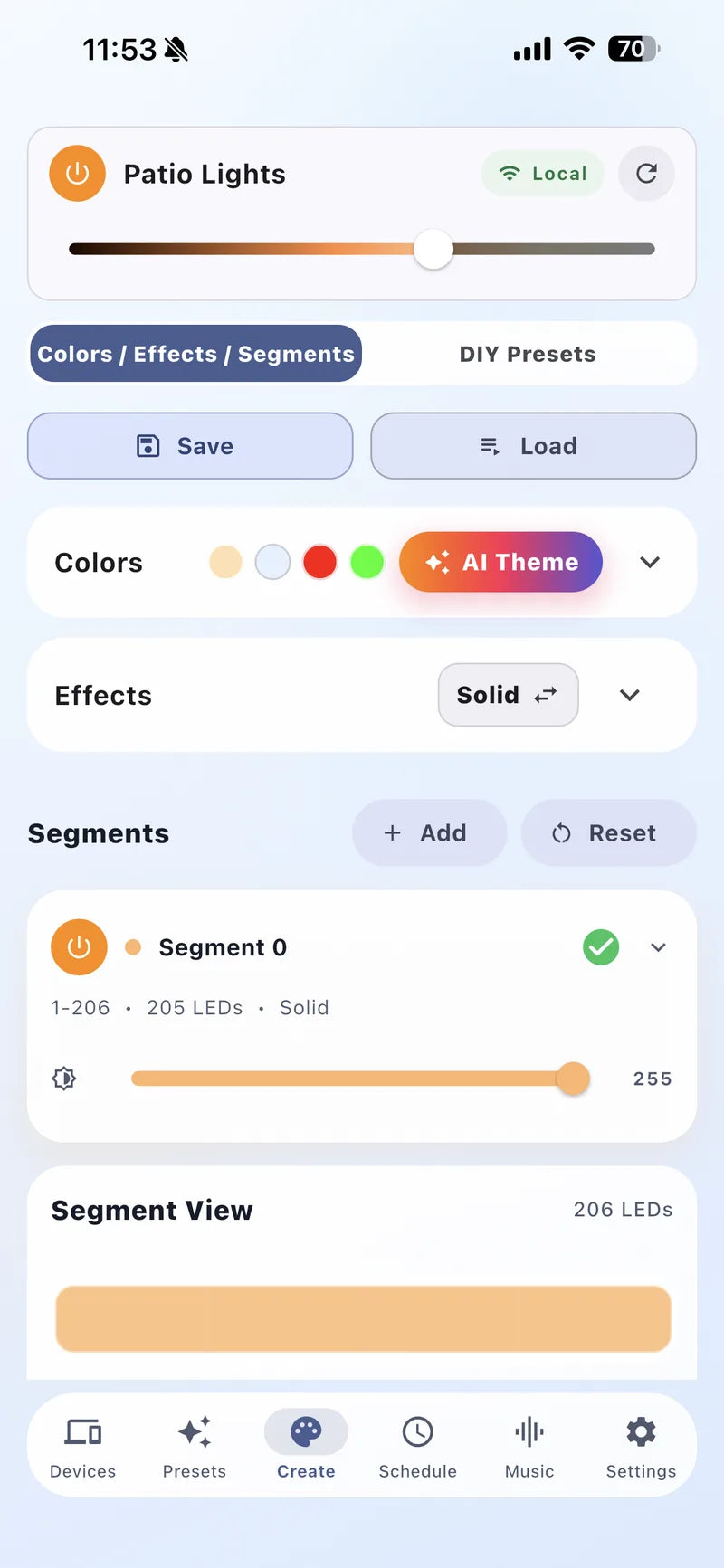
Separate garage, peak, patio, front, or side sections only after the total count is correct.
3 · Verify
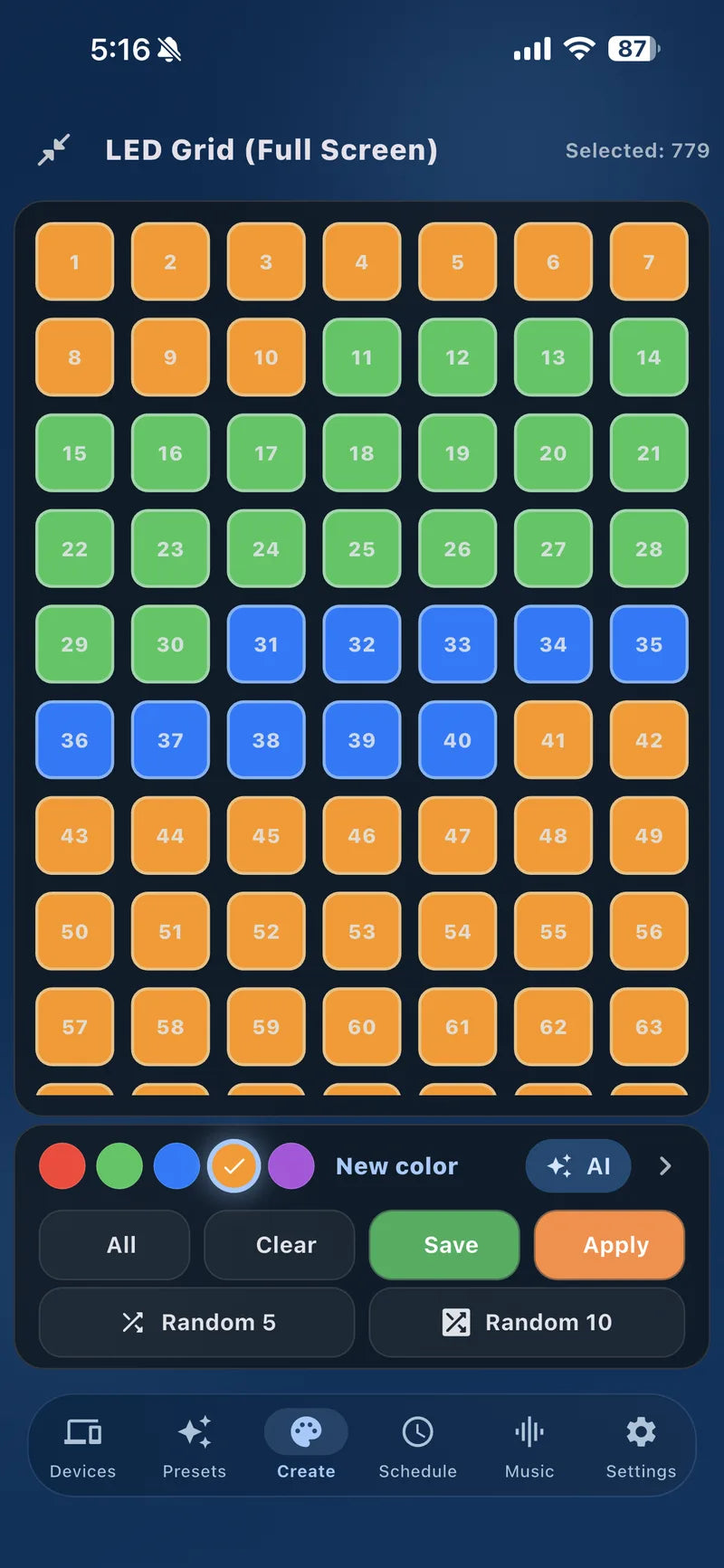
Run solid-color tests and confirm the first and last light in every output and segment respond.
In the Bright Home app:
Go to the Config section for the controller output you're setting up.
From Config, open LED Preference for that output.
Enter the actual number of connected lights. If you don't know the exact count, start lower and increase gradually until every light visually turns on.
Tip
Count the physical lights during installation -- it's much easier to get an exact number before the run is mounted than after.
Segments divide one controller output into separately controllable sections. They're optional, but make permanent LED lights much easier to manage -- for example, warm white along the front roofline with a color effect on the garage. Use segments to:
Configure the LED count for an output before creating segments on it.
Segments are divisions of an already-counted output, so the count must be correct before you split it up.
Add a segment for each area you want to control independently -- garage, peak, patio, or left/right roofline -- and name it to match the real layout of the house.
Run a solid color across each new segment to confirm it covers the intended physical section before layering in effects.
After entering the LED count, run a solid red, green, blue, and white test across the output. Every physical light in the connected run should respond. If the last lights don't respond, the count may be too low, the data direction may be reversed, or the wiring needs to be checked. Save the settings after each change, and reboot only after confirming the count is correct.