
Reviewed August 2026. App labels may vary slightly by app version, controller firmware, and supported integration.
01 · Devices
Connect and manage your controller
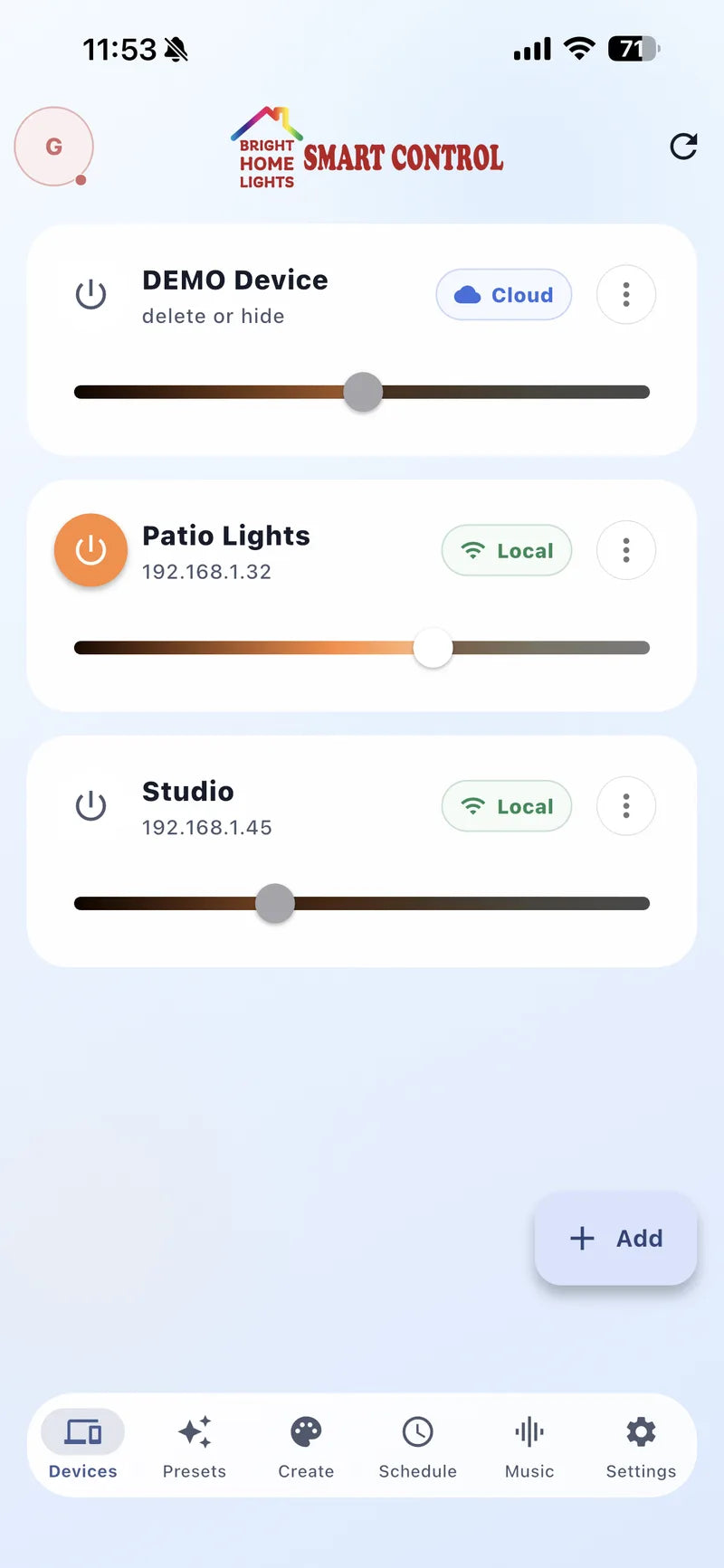
The Devices screen is the starting point for each lighting system. A device card shows the controller name, status, power control, and brightness. Local means your phone can reach the controller on the same network; cloud status indicates remote access is available when configured.
- Add the controller. Tap Add Device and follow the pairing steps for your network.
- Confirm connectivity. Use refresh if the status has not updated after joining Wi-Fi.
- Name the device. Choose a recognizable name such as Front Roofline or Patio.
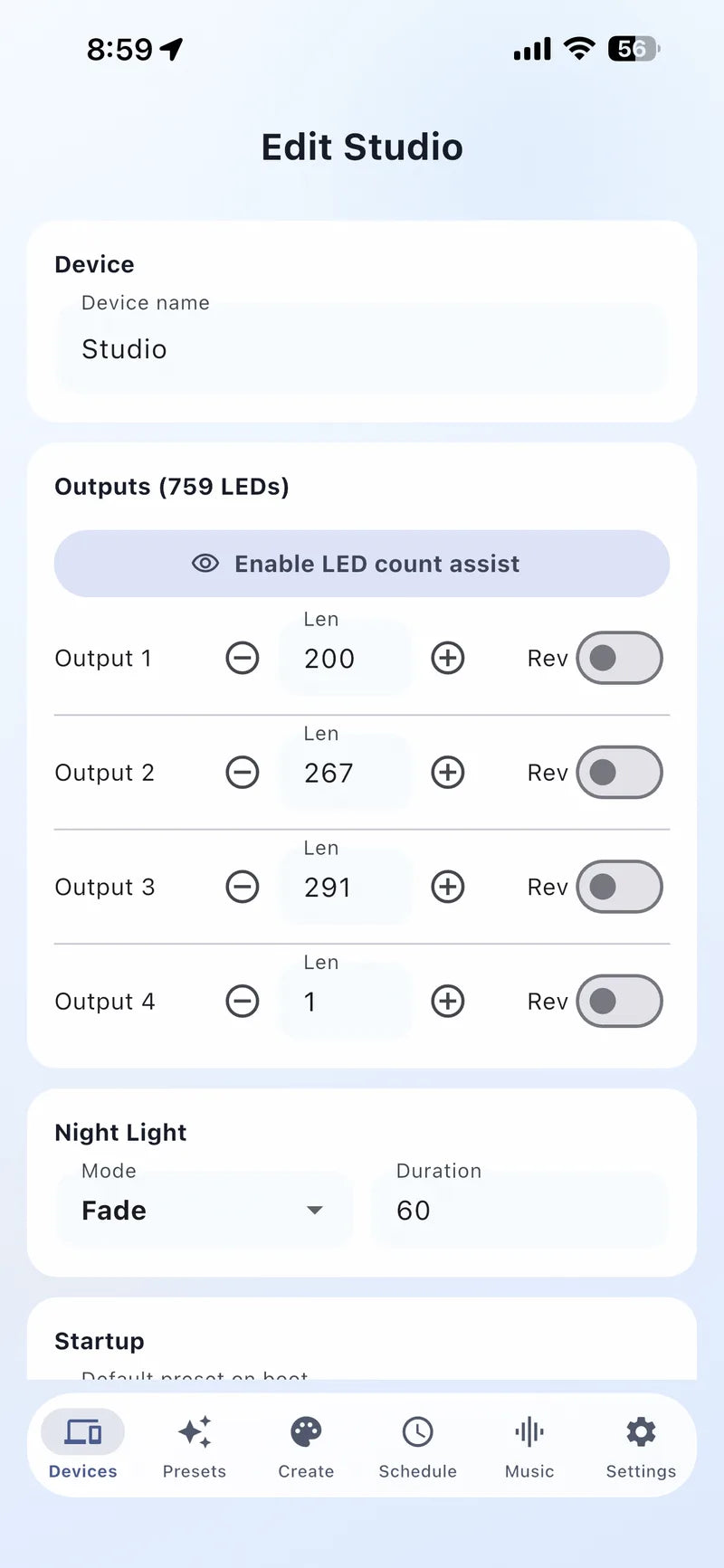
- Verify the configuration. Open Edit & Configure to check LED count and segments before saving presets.
02 · Presets
Choose a look or save your own
BHL Presets are ready-made themes organized around accents, events, holidays, and sports. Device Presets are looks saved to your controller for quick reuse.
- Filter presets by category instead of scrolling through every option.
- Search by name and favorite the looks you use most often.
- Preview a preset, then adjust its colors or effect before saving it to the device.
- Use team themes as a starting point and personalize the palette if needed.

03 · Create
Build a custom lighting scene
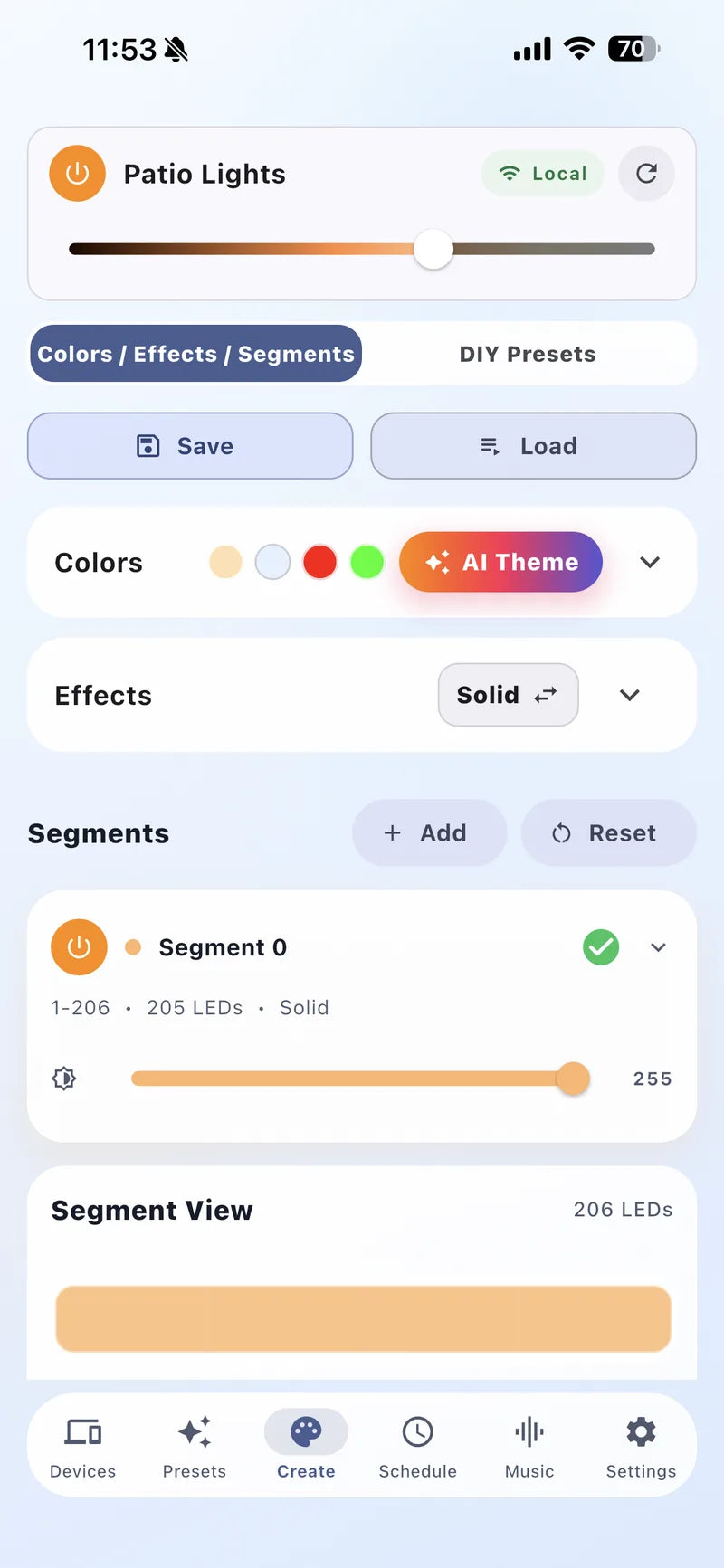
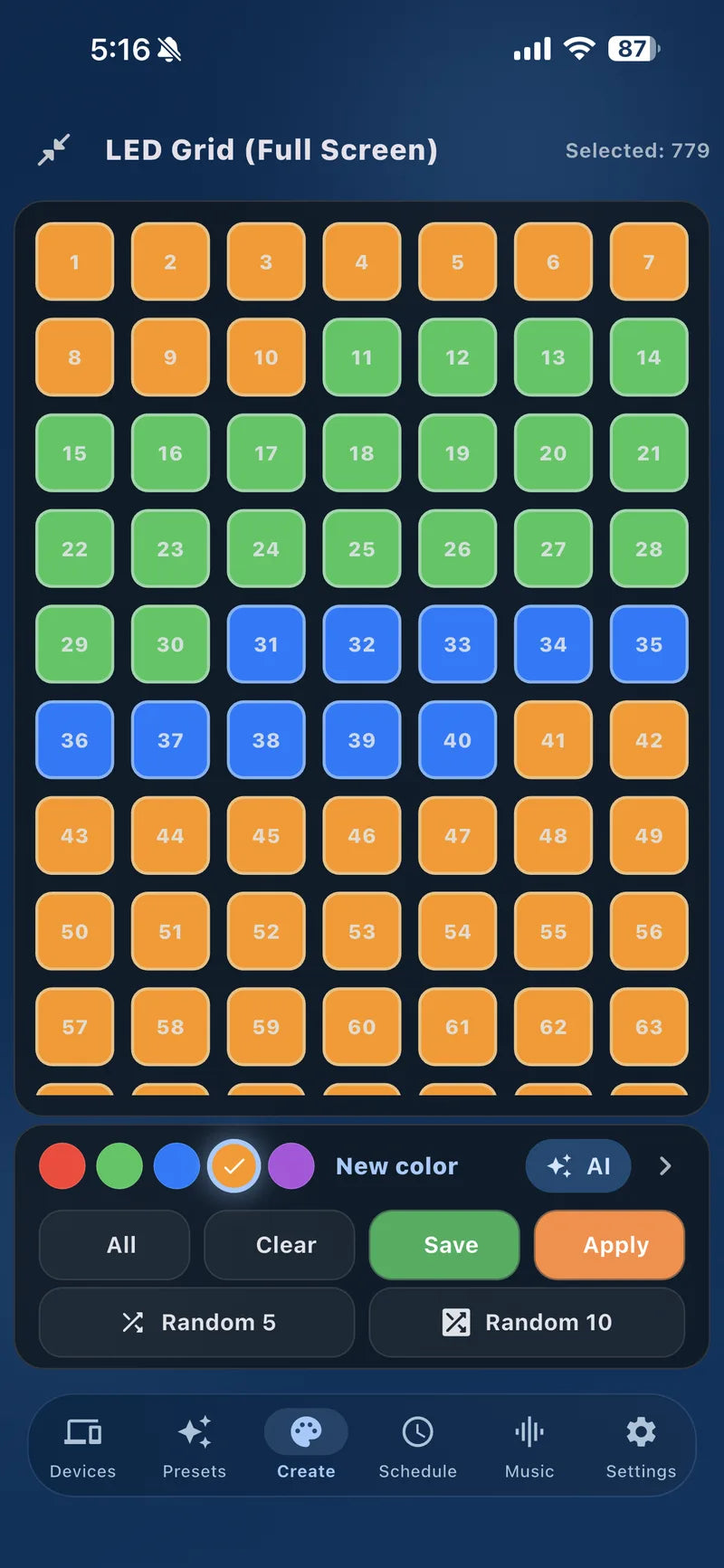
The Create area combines three complementary tools. Start with Colors for a clean static look, use Effects & Segments for motion and roofline zones, or use the LED Grid for individual-light control.
Choose from the color wheel, fill palette slots, and adjust the dedicated white channel on supported RGBW lights.
Select an effect and palette, tune speed or intensity, then apply it to the whole system or selected segments.
Select individual LEDs or groups, apply colors, and use quick actions to create more precise patterns.
Describe a mood, event, or team to generate a starting palette, then review and apply it to your lights.

AI color assist
Turn an idea into a starting palette.
Use a plain-language prompt, review the suggested colors, and apply the result to a compatible effect. You remain in control of the final palette, brightness, and animation.

04 · Schedules & automations
Make the right lights turn on at the right time
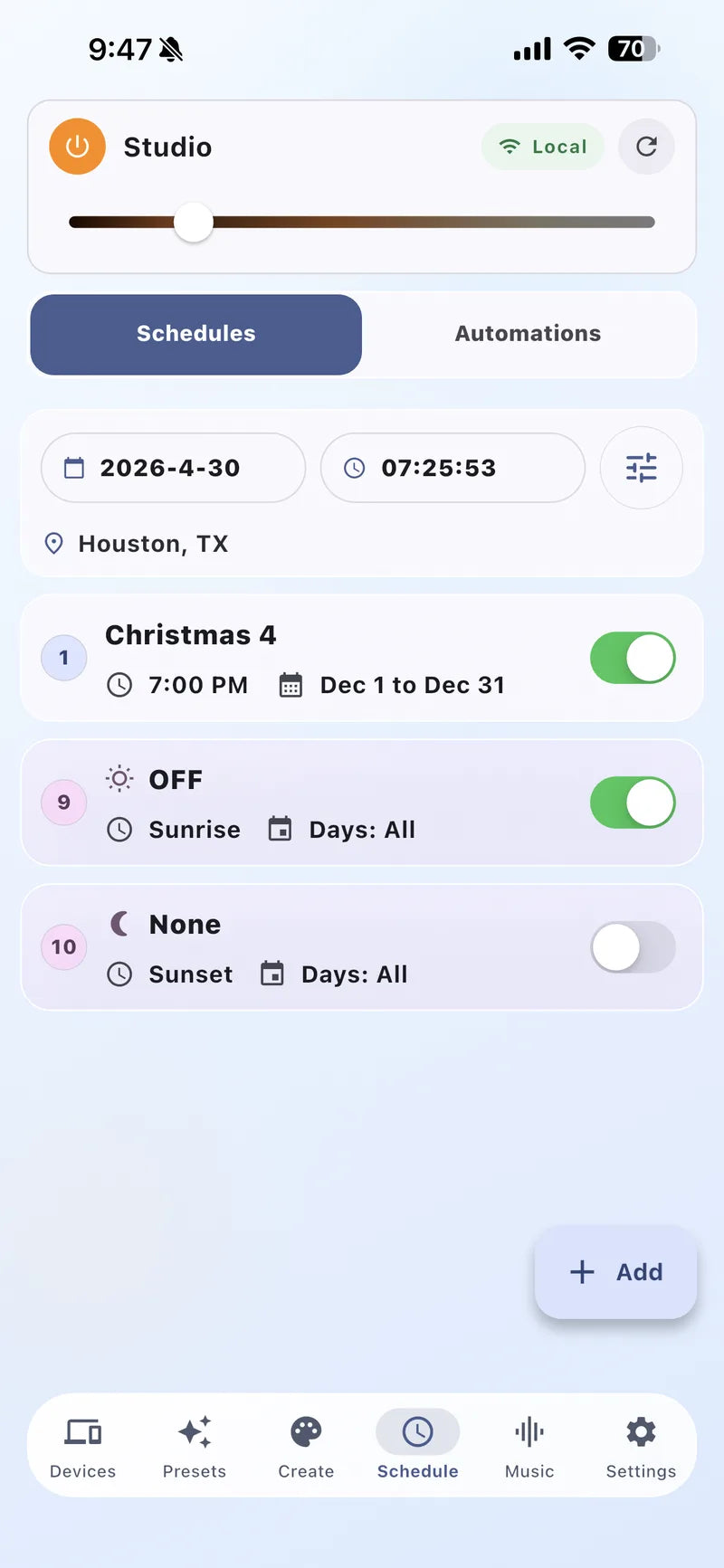
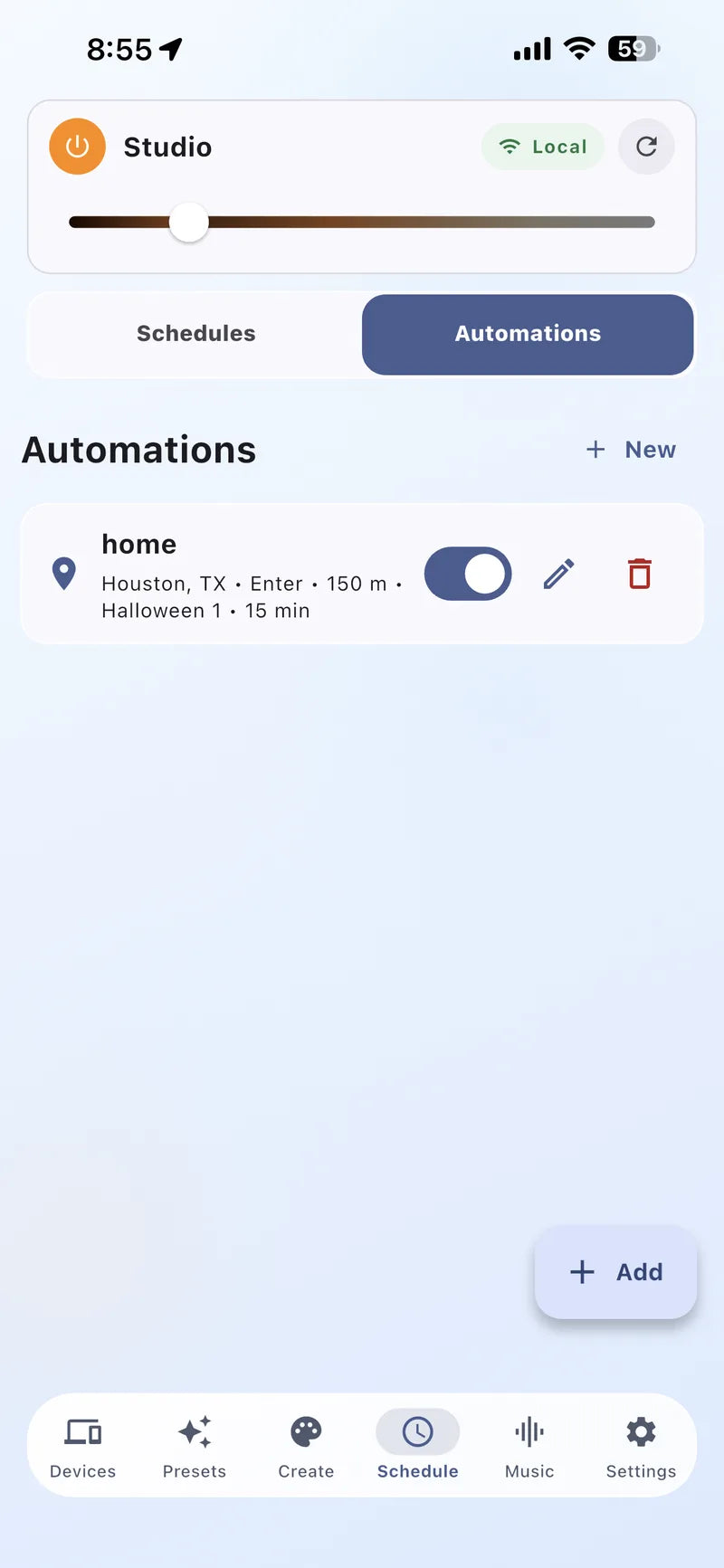
Schedules run at set times or around sunrise and sunset. Automations can add conditions such as location when supported by your account and device settings.
- Open Schedules and create a new entry.
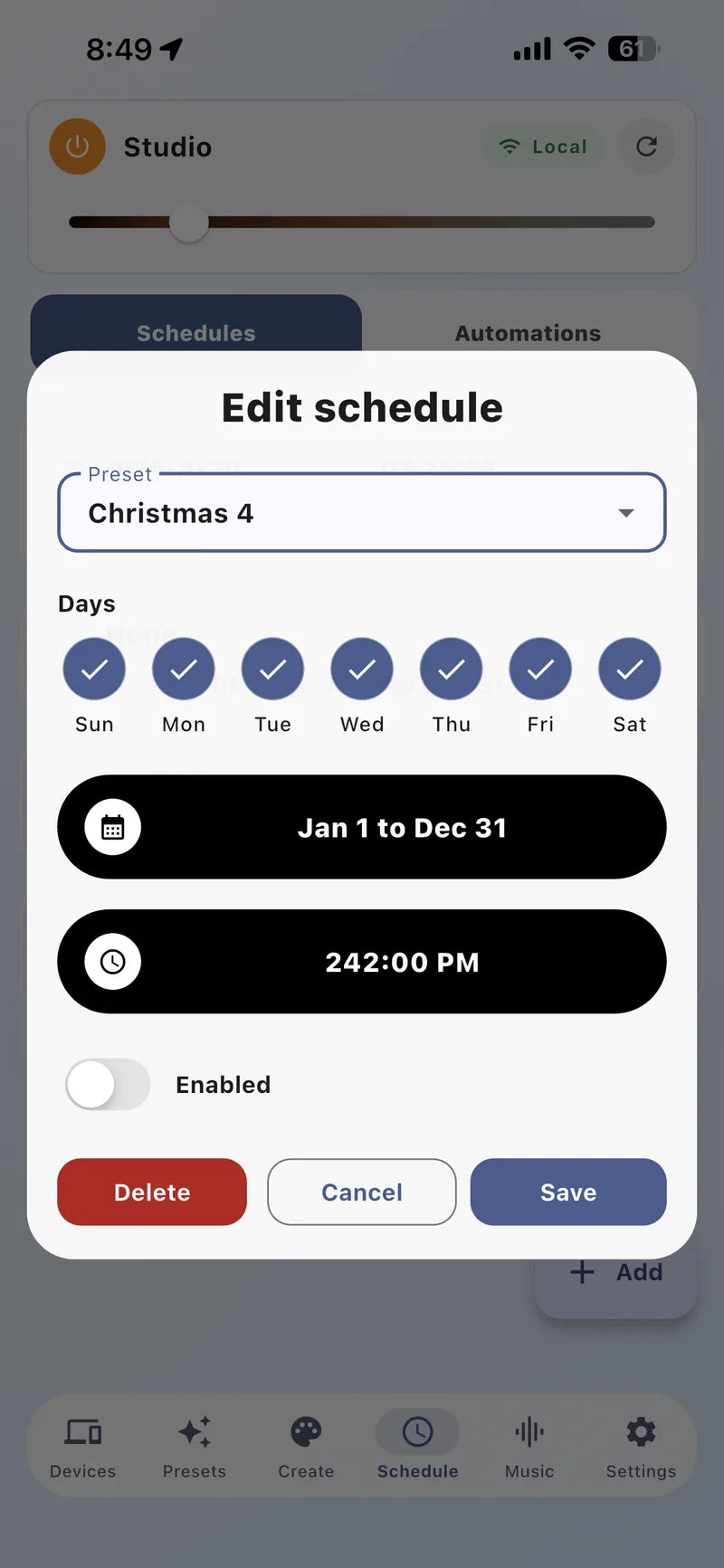
- Choose the device, action, preset, days, and time—or select a sunrise/sunset offset.
- Add a date range when a schedule should only run for a season or holiday.
- Save the entry and confirm its toggle is enabled.
05 · Music sync
Create sound-reactive lighting
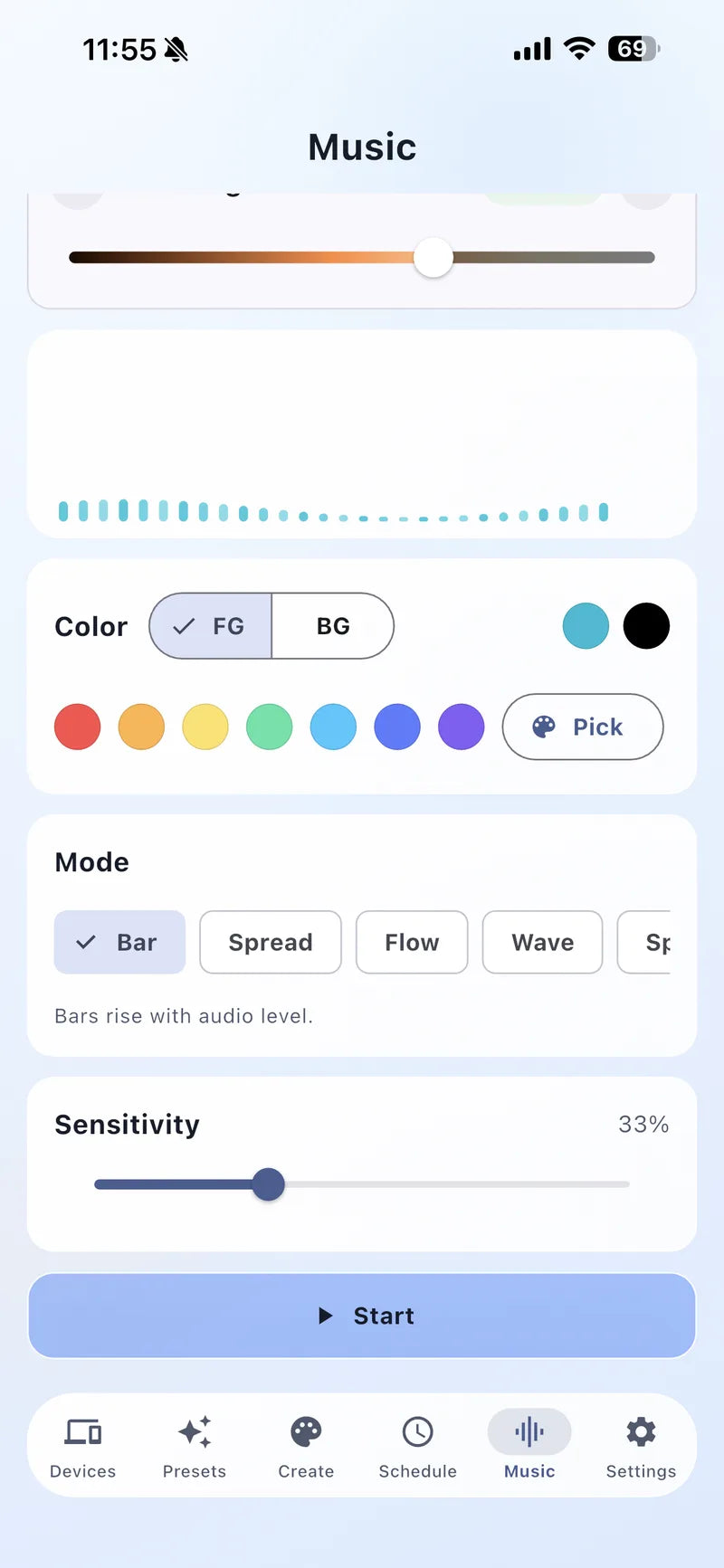
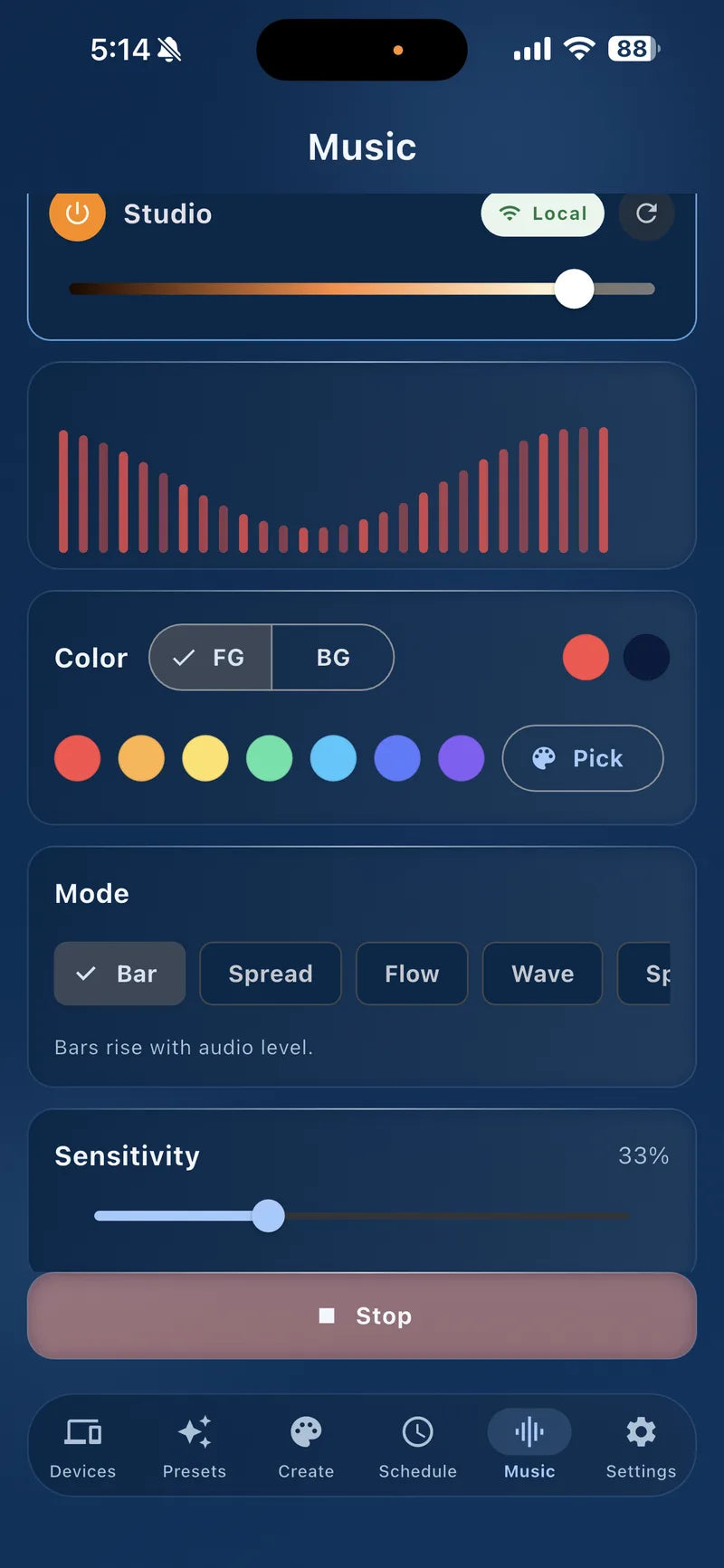
Music Sync uses audio input to animate the lights. Choose foreground and background colors, select a visualization style, adjust sensitivity, and start the session. Results depend on the supported controller and the audio environment.
- Start with moderate sensitivity, then increase it in a quiet room or lower it near speakers.
- Use contrasting foreground and background colors so movement is easier to see.
- Stop Music Sync before returning to a normal preset or schedule.
06 · Account, cloud & integrations
Control lights beyond the local network
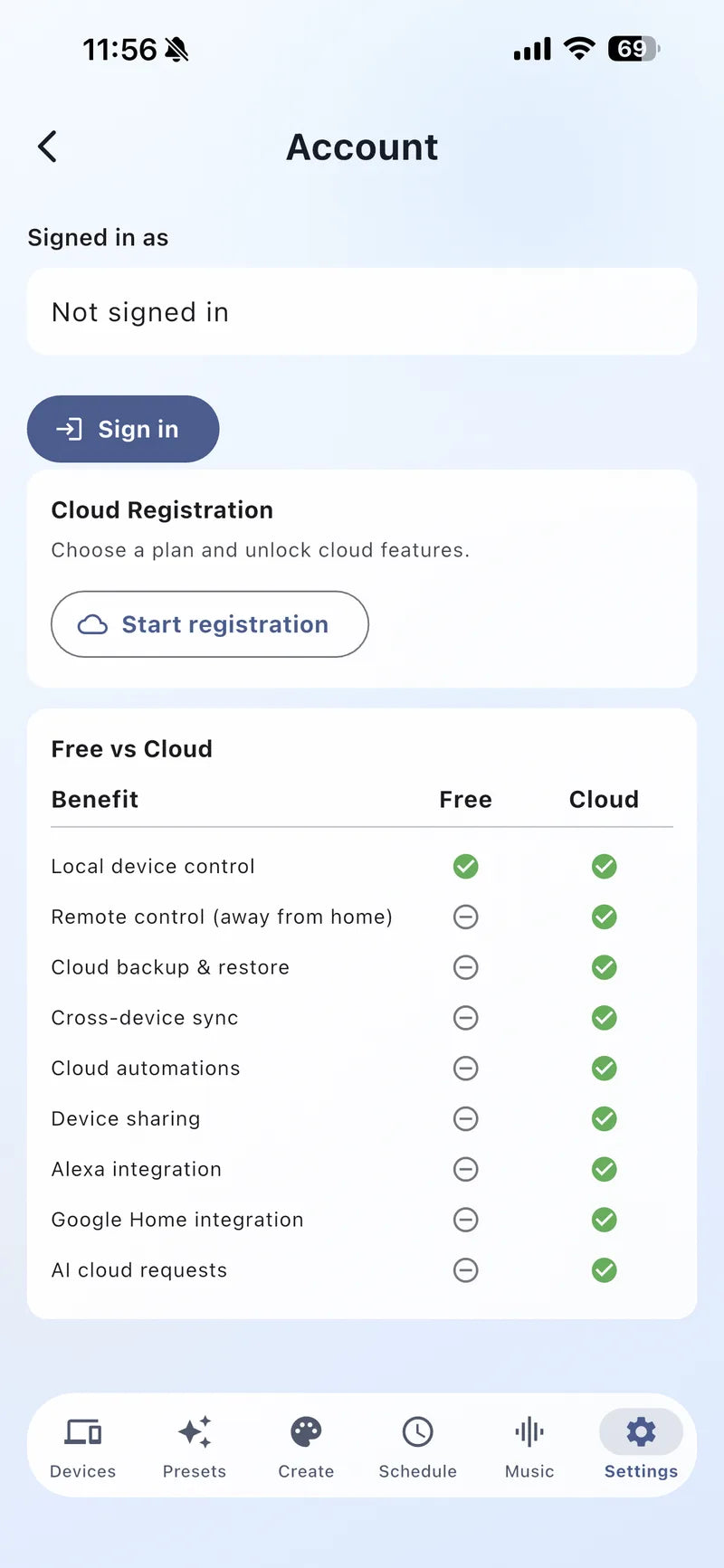
A local connection handles everyday control while your phone and controller are on the same network. A configured Bright Home Lights cloud account adds supported remote features such as cross-device access, backup, sharing, automations, and voice-assistant integrations.
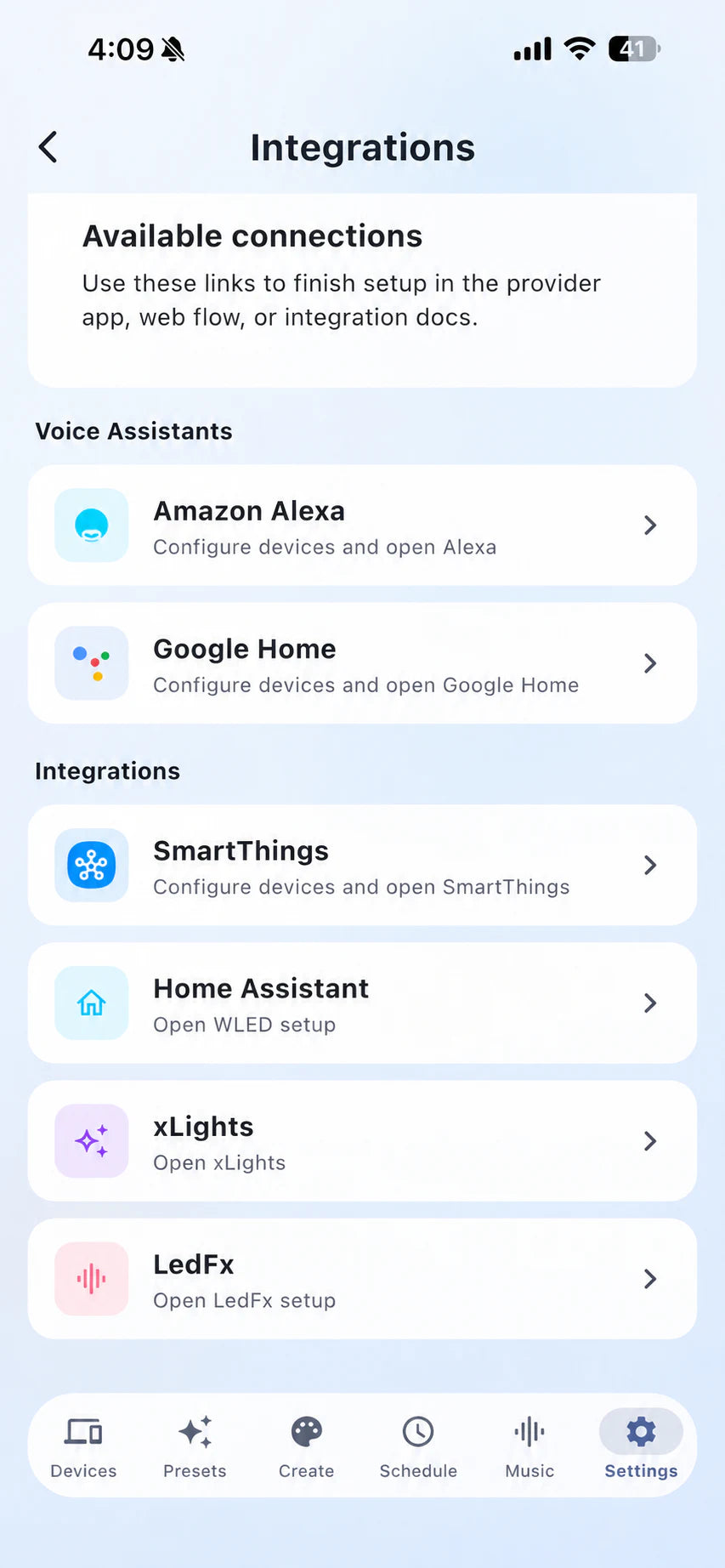
Use the supported BHL Cloud connection for voice commands and routines.
Google Home setup guide → Amazon Alexa Control WLED lights with AlexaConnect supported controllers and discover lights or scenes through BHL Cloud.
Alexa setup guide →Advanced integrations
Connect compatible WLED devices to a local smart-home installation.
Use computer-based sequencing or audio-reactive workflows when you need advanced control.
07 · Personalize & protect
Themes, backups, sharing, and settings
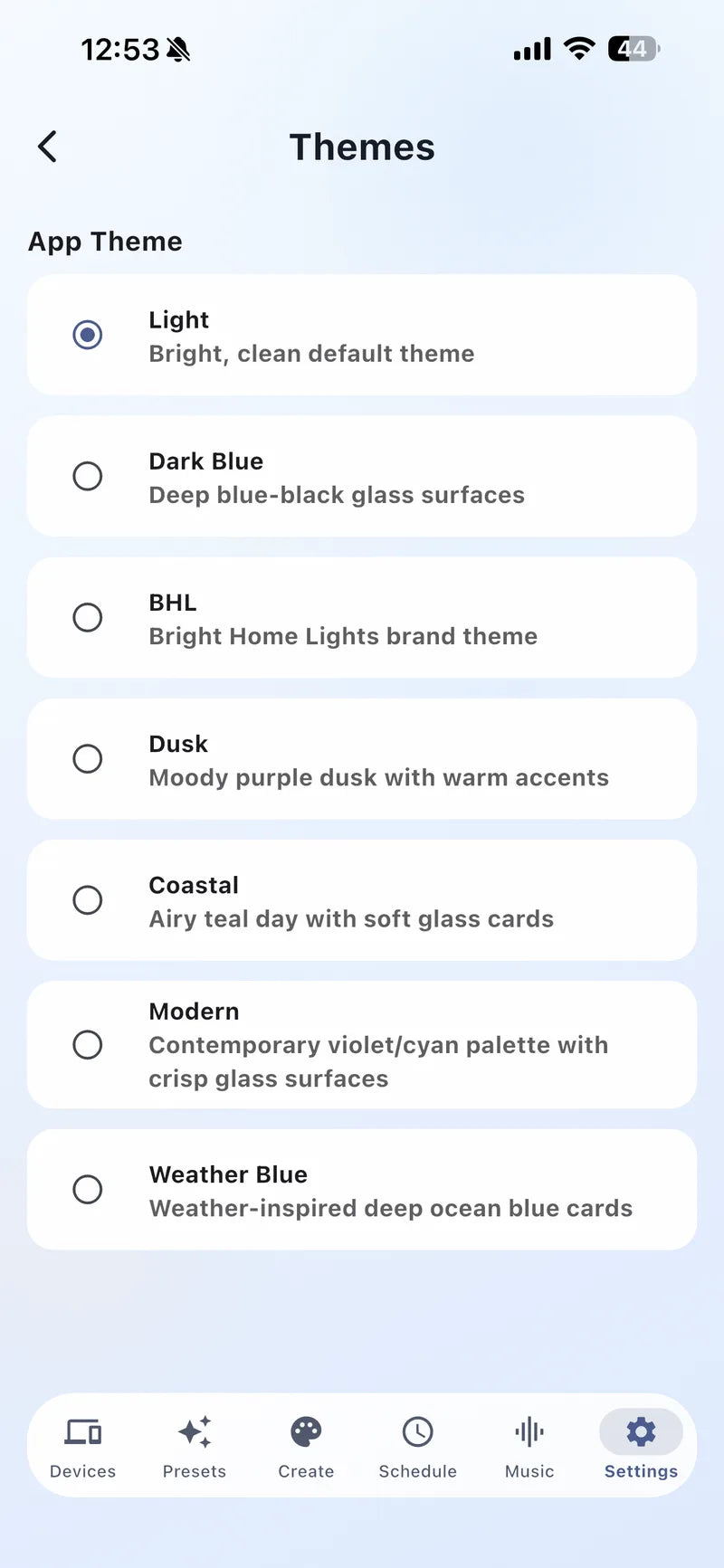
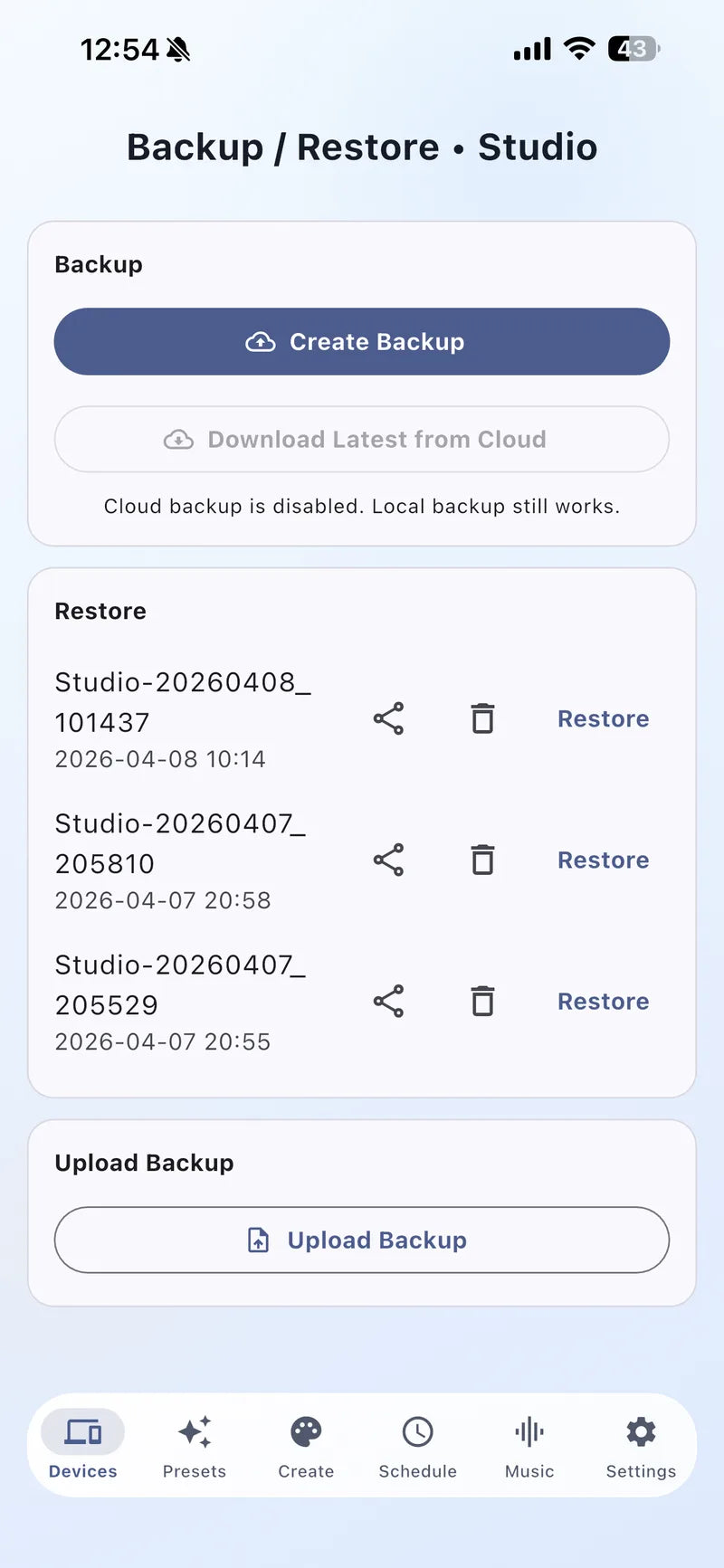
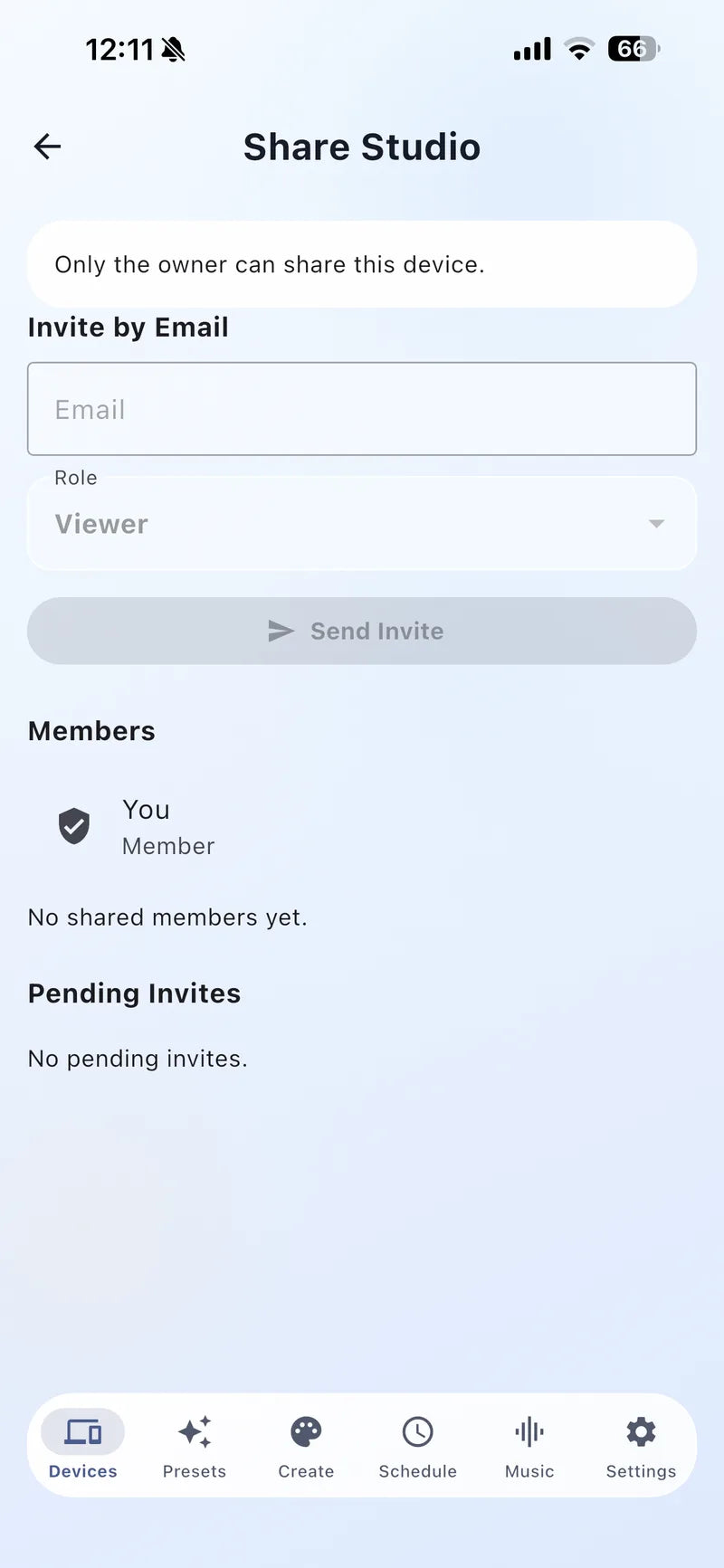
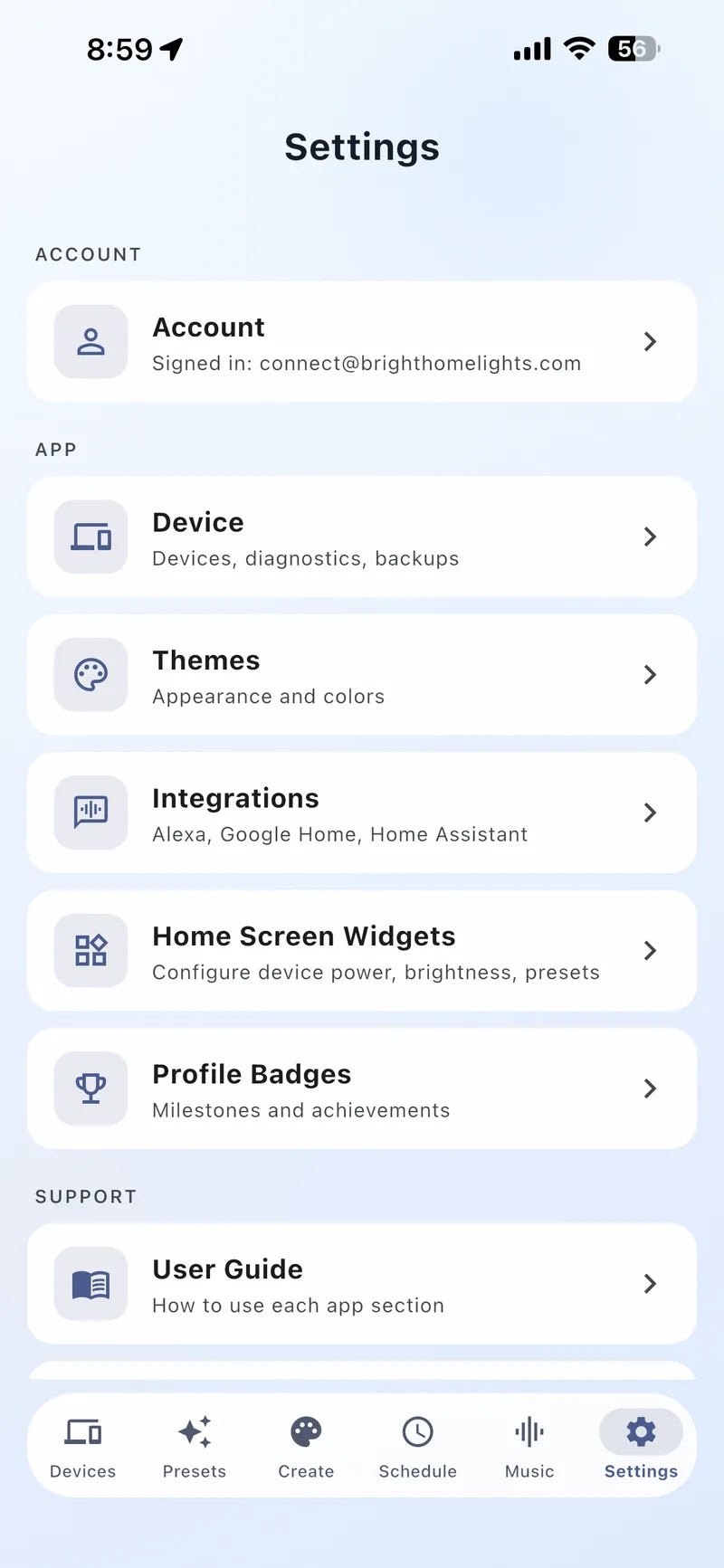
The Settings area holds account controls and quality-of-life features. Select a theme for comfortable viewing, back up important configurations, invite trusted household members, and manage supported home-screen widgets.
- Themes: choose the visual style that is easiest to read in your environment.
- Backup & restore: save a known-good configuration before making major controller changes.
- Device sharing: invite by email and select the appropriate Viewer or Member role.
- Widgets: create shortcuts for power or frequently used presets when supported by your phone.
Common questions
Bright Home Lights app FAQ
Why does my controller show as offline?
First confirm the controller has power and your phone is on the correct Wi-Fi network. Refresh the Devices screen. If it still does not appear, reopen the pairing guide and verify the controller’s network settings.
Should I configure LED count before creating presets?
Yes. Set the correct LED count and segments first so effects, colors, and saved presets map predictably to the physical installation.
What is the difference between BHL Presets and Device Presets?
BHL Presets are ready-made themes in the app. Device Presets are configurations stored for a specific controller and can include the selected colors, effect, palette, brightness, and segment behavior.
Can I control the lights away from home?
Local control works while your phone can reach the controller on the same network. Remote access requires a configured Bright Home Lights cloud account and a supported connected device.
Can Bright Home Lights work with Alexa or Google Home?
Supported voice-assistant control is provided through BHL Cloud. Follow the current integration guide and confirm that both your cloud account and controller are online.