
BHL + CHATGPT
Connect BHL WLED Lights to ChatGPT
Use ChatGPT to control compatible WLED and permanent lights connected to your Bright Home Lights cloud account. Follow the setup steps, enable AI access, and try a lighting request.
Before you start
Your WLED lights, connected to ChatGPT
Connect your existing Bright Home Lights account to use your enabled devices and presets in ChatGPT. This guide follows the BHL app and ChatGPT connection flow on iPhone.
Open ChatGPT from the BHL app
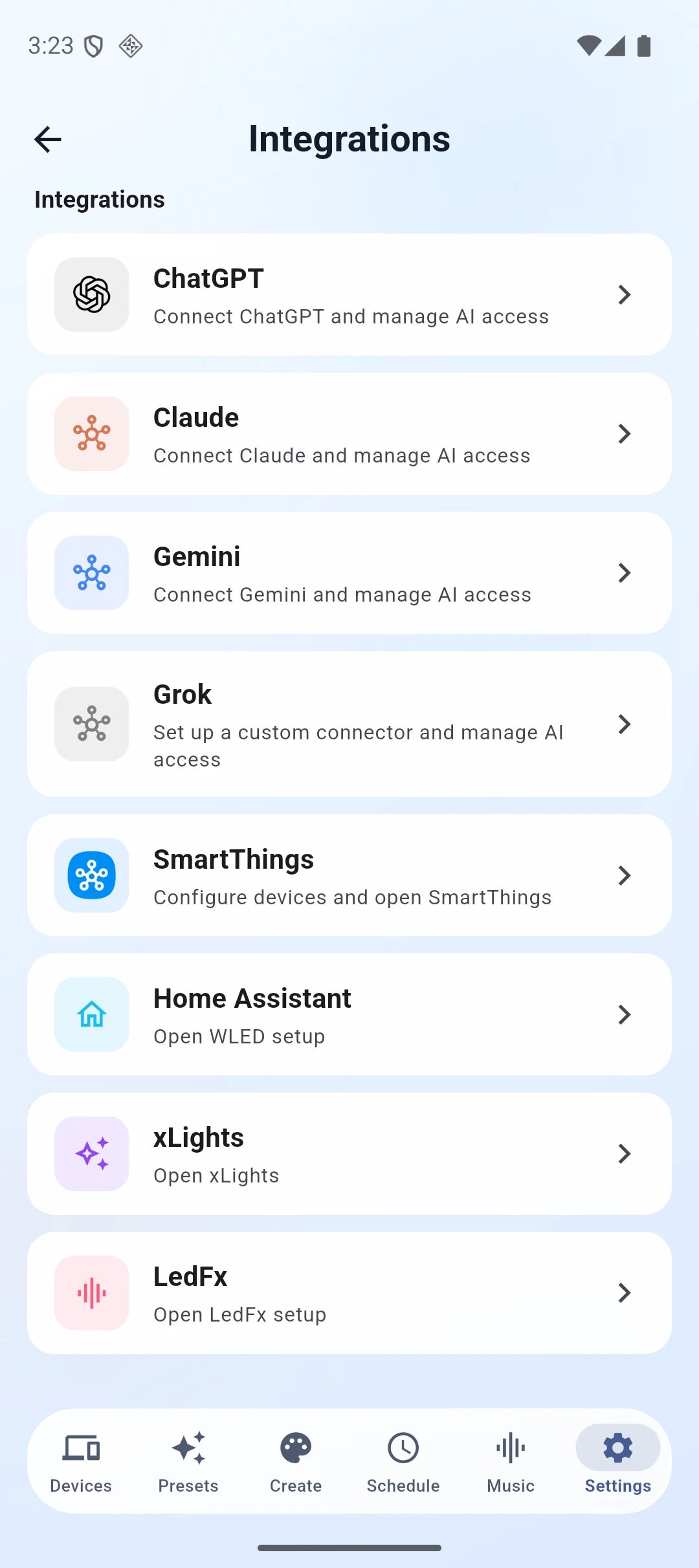
In the BHL app, open Settings → Integrations → ChatGPT.
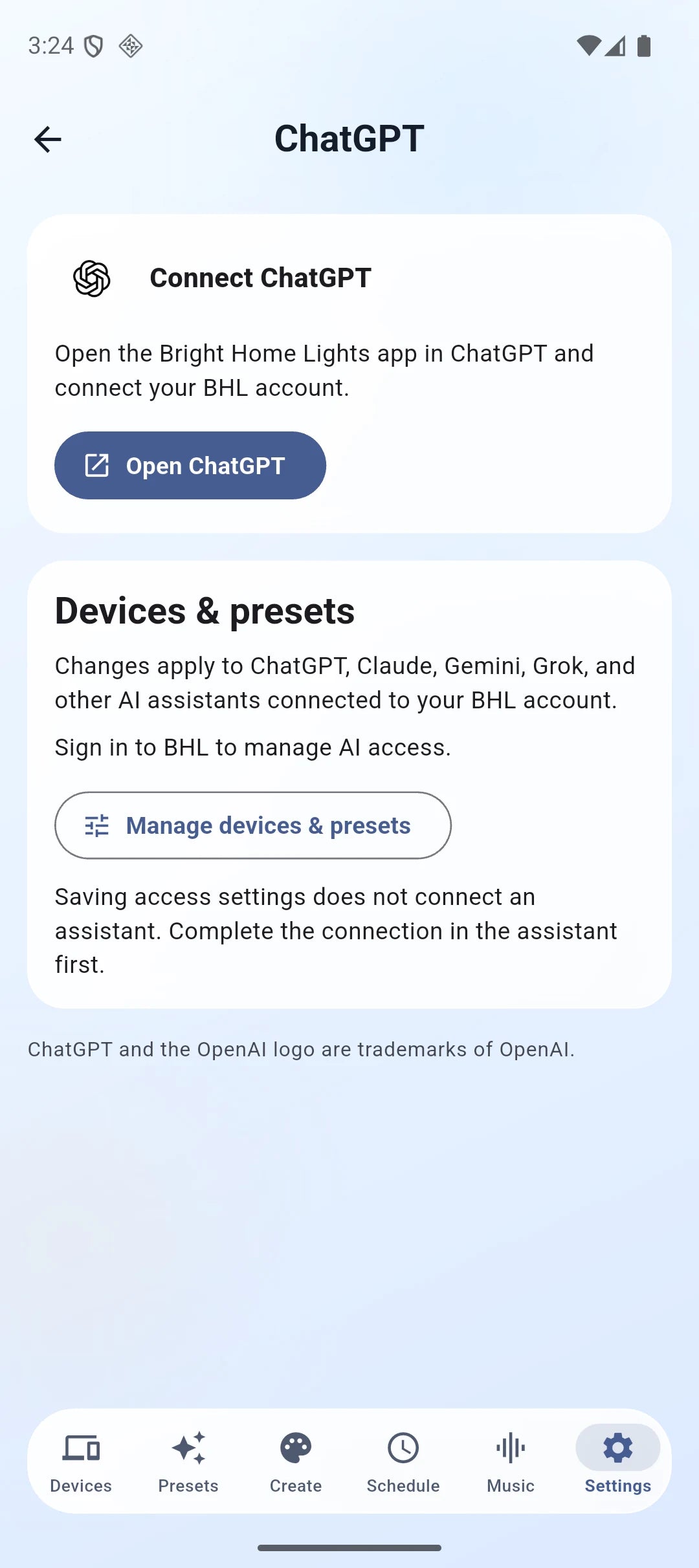
Use Manage devices & presets to review which devices are enabled for AI access. Save any changes, return to this screen, and tap Open ChatGPT.
Access settings also apply to other AI assistants connected to your BHL account. The device count in the screenshot is an example.
Install Bright Home Lights in ChatGPT
Alternatively, open the published Bright Home Lights listing in ChatGPT directly. On the Bright Home Lights app page, tap Install plugin at the bottom of the screen.
Follow the prompts to connect your BHL account. Your screen may use a different connection label.
Continue to BHL sign-in
If your iPhone asks whether ChatGPT can use auth.brighthomelights.com to sign in, tap Continue to open the BHL connection page.
This is the sign-in prompt shown in the walkthrough. If you already have an active sign-in session, you may see a different sequence.
Sign in and connect your BHL account
On auth.brighthomelights.com, enter the email and password for your existing BHL account.
Review the permissions shown. These include viewing devices and saved presets, controlling lights, creating presets, and managing schedules and sports automations.
Tap Sign in and connect to ChatGPT. Scroll if needed to reach the button, then return to ChatGPT when the connection finishes.
Try Bright Home Lights in a chat
Back on the Bright Home Lights app page, tap Try in chat.
Start with a request that checks the connection:
“Which Bright Home Lights devices can you access?”
Compare the response with the devices you enabled in the BHL app. In a new chat, you can also type @ and select Bright Home Lights.
Find the connection in the BHL app
Open Settings → Integrations → ChatGPT. These Android app screens show the signed-out view; sign in to BHL to manage device and preset access.
What you can ask BHL to do
MCP connects your assistant to the BHL account, devices and presets you allow. Start with a device check, name the device in later requests, and review the proposed action before confirming a change—especially a permanent deletion.
Actions depend on account and device access, permissions and connectivity. These examples describe supported connector capabilities; they are not a claim that every command has been independently tested on every assistant. The assistant may ask you to clarify the device, preset or schedule.
Check your connection and lights
Check account connection
Check your BHL account connection and granted permissions.
Example: Is my Bright Home Lights account connected?
List your devices
List accessible cloud-provisioned devices, including online, offline or unknown status. Status is cached and may be delayed; an offline result does not explain the cause.
Example: List my lights and their online status.
Read current controller state
Request fresh power, brightness, active preset, effect and color information for a device.
Example: Check the current state of Patio Lights.
Browse saved presets
List saved presets visible to your account on a chosen device.
Example: Show my Studio presets.
Set lights and manage presets
Change your lights
Turn a device on or off; set brightness from 0–100%, one RGB color, a supported effect, or effect speed/intensity from 0–100%. Friendly styles include solid, breathe, blink, colorloop, chase, twinkle, rainbow and fireworks. Optional durations are 1–1,440 minutes with previous-state restore. Each device operation targets one device; changes to multiple devices are applied separately.
Example: Set Patio Lights blue at 40% for 10 minutes, then restore the previous lights.
Run a saved preset
Apply an existing preset to a chosen device, optionally for 1–1,440 minutes and then restore the previous state.
Example: Run Evening on Patio Lights for 30 minutes, then restore the previous lights.
Create a new preset
Create a new, non-overwriting preset with a 1–32 character name, one to three RGB colors, a supported style, brightness and supported effect settings. Saving briefly changes the lights to verify the result and normally restores the prior state. Confirm whether to leave the preview active. Arbitrary effects and pixel-by-pixel editing are not supported.
Example: Create a blue-and-gold twinkle preset called Game Night on Patio Lights; restore the previous lights afterward.
Delete a preset
Permanently delete an owner-controlled preset after confirming its exact name and device. A preset used by a schedule or sports automation cannot be deleted until that dependency is resolved.
Example: Help me delete Game Night from Patio Lights; confirm the exact preset before deleting.
Review and recover changes
Review recent activity
See recent AI lighting actions.
Example: Show my recent AI lighting activity.
Undo the latest AI change
Undo the latest still-active AI lighting change across your account, without overwriting newer unrelated changes.
Example: Undo my last AI lighting change.
Restore a device’s previous state
Restore a captured prior state for a chosen device and applicable action. This cannot recover an arbitrary historical moment.
Example: Restore the captured previous state of Patio Lights.
Cancel an automatic restore
Cancel a pending timed restore, normally leaving the current lighting unchanged. Request an immediate restore explicitly if desired.
Example: Cancel the pending restore on Patio Lights and keep the current lights.
Schedules and sports automations
View automations
List device schedules and sports automations, including whether each is enabled.
Example: Show my Patio Lights schedules and sports automations.
Find supported sports options
Discover currently supported sports, competitions, teams and event triggers before choosing a celebration.
Example: Which teams and sports events can trigger my lights?
Create a schedule or sports automation
Create recurring fixed-time schedules on selected weekdays using device-local time and an existing preset. Sports automations use supported team/event options and an existing preset, with auto-run or ask-first mode, a 1–60 minute duration and optional cooldown. Creating sunrise/sunset schedules is not supported, even if existing schedules show those types.
Example: Run Evening on Patio Lights at 7 PM every day. Confirm the device-local time before saving.
Edit an automation
Edit supported name, enabled state, preset, fixed time, weekdays, mode or duration fields. Changing a sports team or trigger requires deleting and recreating that automation.
Example: Change my Evening schedule to 8 PM on weekdays.
Pause or enable an automation
Enable or disable a schedule or sports automation without deleting it.
Example: Pause my Evening schedule.
Delete an automation
Permanently delete the exact confirmed schedule or sports automation.
Example: Help me delete the Evening schedule; confirm which one before deleting.
Test an automation
Apply the automation’s preset for one minute, then restore the prior lighting. This does not simulate a real sports event.
Example: Test my Patio Lights celebration for one minute, then restore the previous lights.
Need a hand?
Missing devices or a sign-in problem?
Check the BHL account, AI access, and connection steps.
Permanent lighting and WLED compatibility
Control compatible WLED lights connected to your Bright Home Lights cloud account using natural language. Devices must be connected to your BHL cloud account and enabled for AI access. A standalone local WLED controller is not automatically accessible through the BHL MCP connector; support depends on the device and firmware. This connection does not provide arbitrary raw WLED commands.
For permanent Christmas lights, roofline lighting or everyday outdoor lighting, begin by checking which devices the assistant can access. Name the device in your request, then ask for a supported color, brightness or saved preset. Each device operation targets one device; changes to multiple devices are applied separately.
Need to prepare your controller? See controller Wi-Fi setup, WLED LED count and segments, and the Bright Home Lights app guide.